
Use cases
Schedule Shopify sections for seasonal campaigns and flash sales
ePlugin ·
Prepare a campaign section in your existing theme, then give it a start/end schedule. Visi can show content during that window and hide it afterward, without manually switching the theme for each campaign.
The merchant problem
Campaign teams often turn banners on before a sale and remove them afterward. A missed handoff can leave expired messaging visible. Scheduling separates content preparation from the launch time.
How to do it with Visi
- Prepare the campaign section and enable Visi Widgets.
- Select the section, add a one-time date/time schedule and verify the store timezone.
- Save and test the storefront before, during and after the window; check for other schedules on the same content.
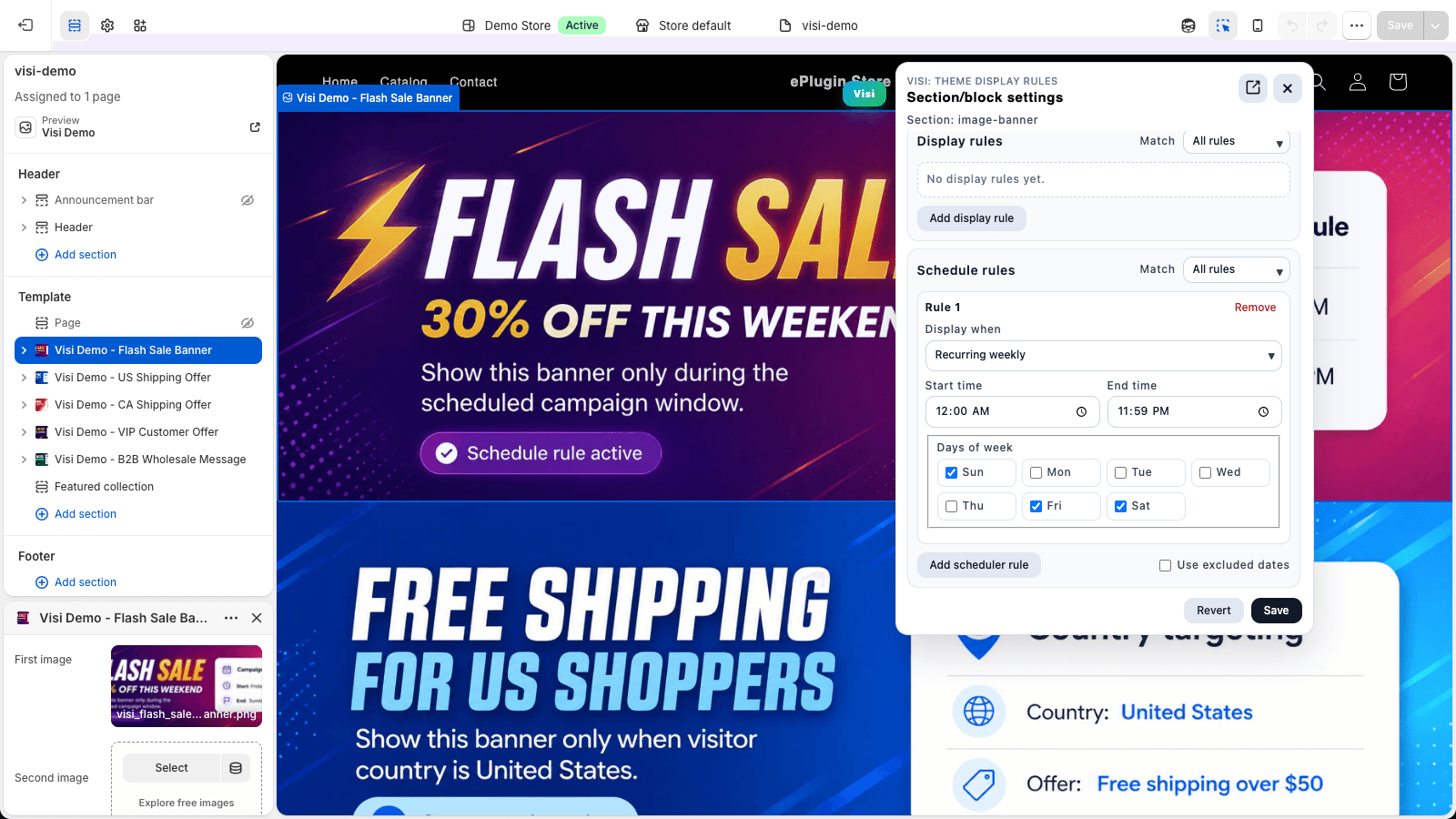
Specific storefront use cases
Seasonal campaigns: Christmas, holiday and back-to-school sections
Prepare Christmas, Lunar New Year, Valentine’s Day or Halloween banners and back-to-school merchandising in your existing theme. Give each section its own campaign window so last season’s message stops qualifying when the campaign ends.
Black Friday and Cyber Monday storefront content
Schedule a Black Friday hero banner and a separate Cyber Monday offer section with their actual start/end times. Check the store timezone, overlapping schedules and any market conditions. Use Shopify separately to configure the real sale prices and discount validity.
Flash sales and limited-time promotional banners
Use a one-time schedule to show an existing sale banner only during a short promotion. With one schedule enabled, it stops qualifying after the end and Visi hides it.
Automatically show and hide scheduled Shopify sections
Keep a campaign section in the theme and let its enabled schedule determine when it appears. This avoids deleting the section after every campaign. If several schedules match “any”, another passing schedule may keep content visible.
Weekend offers, daily promotions and business-hour content
Repeat a content window daily, on selected weekdays or on selected days of the month. Use excluded dates for individual content and store-wide blackout dates for scheduled campaigns that should pause. The recurring-schedule guide below explains all/any matching and holiday exceptions.
Questions merchants ask
Can I schedule a Shopify announcement bar or homepage banner?
Yes. Select the announcement bar or homepage banner in Shopify’s Theme Editor, add a start and end time in Visi, and save the schedule.
How do I automatically remove a Shopify sale banner after a promotion?
Use a single enabled schedule with an end time to hide the banner after the promotion. Check other schedules, all/any matching and separately configured discount terms.
Do I need to duplicate my Shopify theme for every seasonal campaign?
Visibility changes to existing sections can be scheduled in the same theme with Visi.
Example setup
For a Black Friday banner, set the actual sale start and end in the store timezone. If the banner should appear only in one market, combine a market display rule with the schedule.
Further reading: Official Shopify documentation
Related resources
Use cases
Show different Shopify sections by market or country
Show Shopify banners by country, market, language or currency. Personalize regional promotions and localized storefront announcements.
- Country-specific banners and shipping messages
- Shopify Markets content and market-specific promotions
- Language-specific sections and currency-aware messages
Guides
How to schedule a Shopify section for Black Friday
Schedule a Shopify section for Black Friday: Theme Editor setup, campaign start/end times, timezone checks and what happens after the sale ends.
Read the practical guide →Guides
How to repeat Shopify section schedules and exclude holiday dates
Repeat Shopify section schedules daily, weekly or monthly. Configure weekend offers, business-hour content, excluded dates and blackout exceptions.
Read the practical guide →