
Guides
How to hide or show a Shopify section without rebuilding your page
ePlugin ·
For a permanent change, use the theme’s own section visibility controls where available. For conditional display, use theme Liquid or a rules app such as Visi for sections and blocks. Choose based on who should see the content and when.
The merchant problem
A section hidden in the editor is usually a theme setting, not an audience rule. Merchants need a different approach when the same page should show content to one shopper but hide it from another.
How to do it with Visi
- Decide whether the change is permanent, page-specific, customer-specific or scheduled.
- Select the section or block you want to show or hide in Shopify’s Theme Editor.
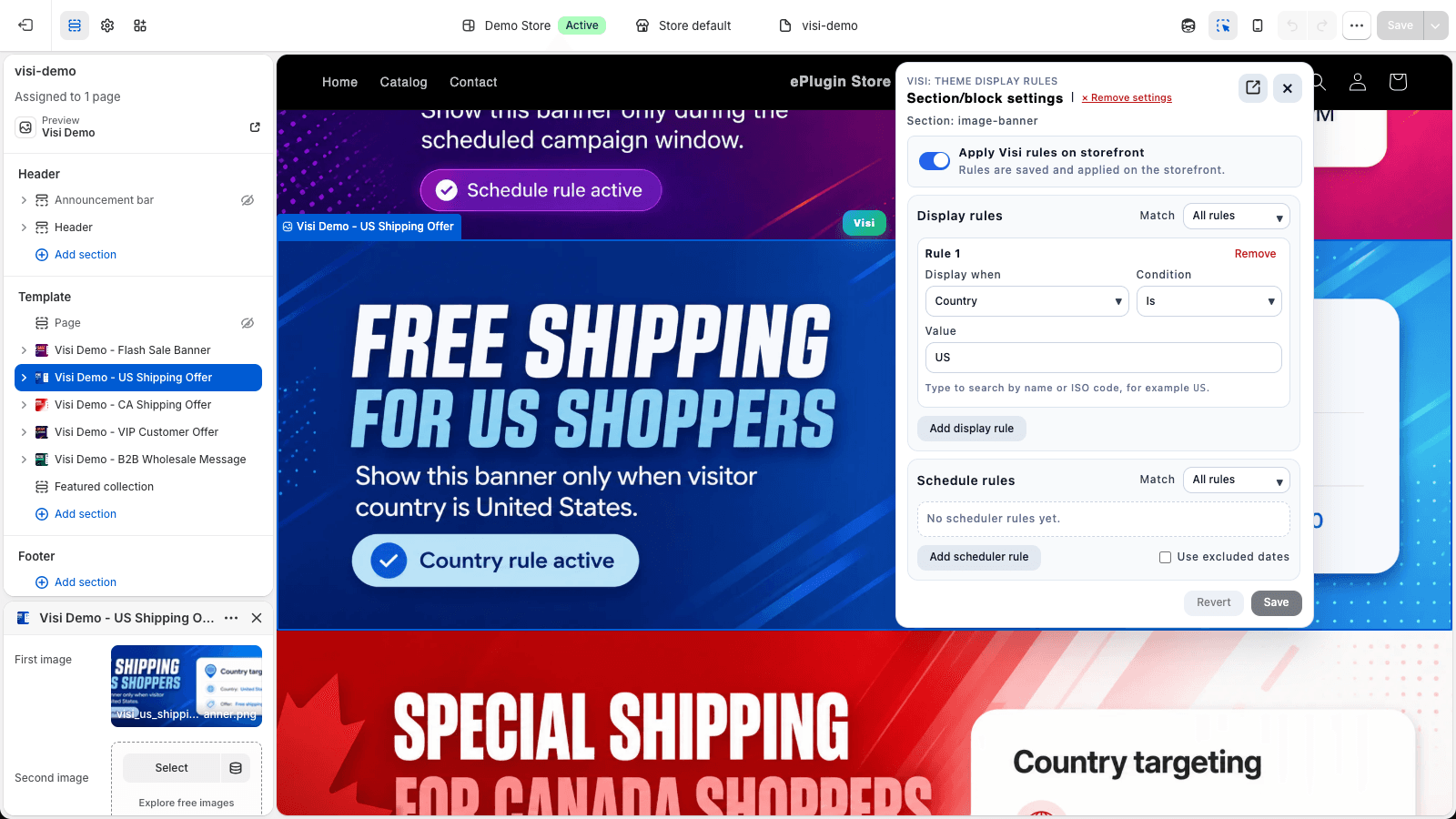
- For Visi, enable the embed, select content, configure rules and save.
- Test both visible and hidden states on mobile and desktop, including logged-out shoppers.
Specific storefront use cases
Hide Shopify blocks and show content conditionally
Select a Shopify block and add an audience, page or schedule rule in Visi. Use this for VIP messages, product-specific information or a promotional block that appears during a campaign.
Questions merchants ask
Can I hide a Shopify section only on certain pages?
Use page-type or URL conditions when the selected content exists on those pages. For structural differences, a separate template may be simpler. Follow the page-specific content use case for homepage, product, cart and URL examples.
Example setup
Keep a general product-information section visible to everyone, and show a separate VIP announcement only to signed-in customers with the matching tag.
Further reading: Official Shopify documentation
Related resources
Use cases
Show Shopify content to customers with a specific tag
Show or hide Shopify sections by customer tag. Personalize VIP banners, loyalty announcements and member messages with practical examples.
- VIP customer banners and loyalty announcements
- Member-only messaging based on Shopify customer tags
- Personalized content using customer metafields
Use cases
Control merchandising sections on product and collection pages
Show Shopify sections on selected product or collection pages using IDs, handles, tags and metafields. Reuse templates with contextual merchandising.
- Product-specific Shopify sections on a shared template
- Merchandising by product tag, type or vendor
- Collection-page merchandising and promotional banners
Guides
How to schedule a Shopify section for Black Friday
Schedule a Shopify section for Black Friday: Theme Editor setup, campaign start/end times, timezone checks and what happens after the sale ends.
Read the practical guide →Use cases
Show Shopify sections only on certain pages or URLs
Show or hide Shopify sections by page type, URL or campaign parameter. Cover homepage, cart, product and campaign landing-page context with display rules.
- Homepage-only, product-page and cart-page announcements
- URL-specific content and campaign query parameters